


Git Commands Refresher
Source: https://learngitbranching.js.org/?locale=en_US
Commands
Git Commit
git commit

Note: git commit --amend allows you to modify the most recent commit.
Git Branch and Checkout
git branch newImage

git checkout newImage; git commit

Git Merge
git merge bugFix

git checkout bugFix; git merge main

Git Rebase
git rebase main

git rebase bugFix

Note: The git rebase -i command (e.g., git rebase -i HEAD~4) allows you to interactively reorder commits, edit commit messages, squash commits, drop commits, and more.
Note: You can specify two branches after the git rebase command to rebase one branch onto another. The syntax is:
git rebase <upstream-branch> <working-branch>
Detach HEAD
git checkout C1

Relative Refs (^)
git checkout main^

git checkout C3; git checkout HEAD^; git checkout HEAD^; git checkout HEAD^

Relative Refs #2 (~)
git checkout HEAD~4

git branch -f main HEAD~3

Reversing Changes in Git
git reset HEAD~1

git revert HEAD

Git Cherry-pick
git cherry-pick C2 C4

Git Tags
git tag v1 C1

Note: If you leave the commit off, git will just use whatever HEAD is at.
Git Describe
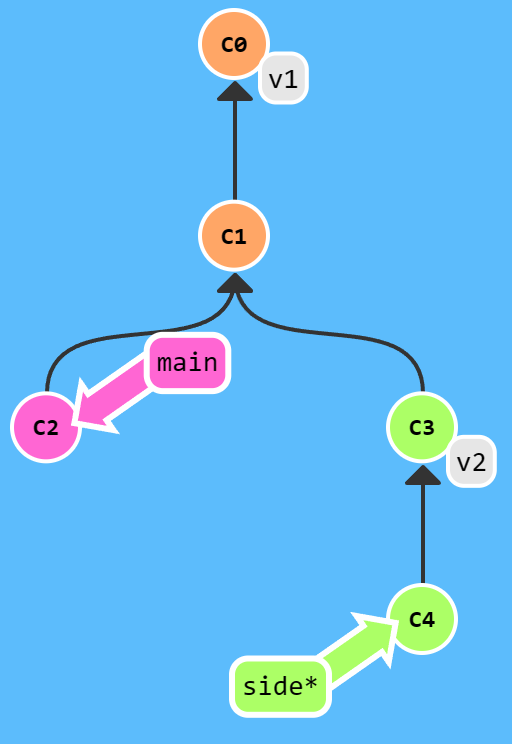
git describe main
v1_2_gC2
git describe side
v2_1_gC4
Note: The output from git describe branch is in the form <closest tag>_<number of commits since tag>_g<abbreviated commit hash>
Git Checkout With Multiple Parents
The number after ^ specifies which parant after a merge commit. So checkout branch^ refers to first parent, checkout branch^2 refers to second parent, etc.
git checkout main^

git checkout main^2

git checkout HEAD~; git checkout HEAD^2; git checkout HEAD~2

git checkout HEAD~^2~2

Git Clone
git clone

Remote Branches
Remote branches have the special property that when you check them out, you are put into detached HEAD mode. Git does this on purpose because you can't work on these branches directly; you have to work elsewhere and then share your work with the remote (after which your remote branches will be updated).
git checkout o/main; git commit

Git Fetch
git fetch

Git Pull
git pull

Note: This is the same as git fetch; git merge o/main.
Git Push
git push

Diverged Work
These are some ways to base your work off of the most recent version of the remote branch:
git fetch; git rebase o/main; git push
or
git pull --rebase; git push

git fetch; git merge o/main; git push
or
git pull; git push

Remote Tracking
During a clone, git creates a remote branch for every branch on the remote (aka branches like o/main).
You can create a new branch that tracks a specific remote branch using the following command:
git checkout -b <branch> <remote>/<remote-branch>
git checkout -b foo o/main; git pull

git checkout -b foo o/main; git commit; git push

Another way to set remote tracking on a branch is to simply use the git branch -u option. Running
git branch -u o/main foo
will set the foo branch to track o/main. If foo is currently checked out you can even leave it off:
git branch -u o/main
git branch -u o/main foo; git commit; git push

Push arguments
To push a branch that does not exist on the remote without checking out the branch, you can use the following command:
git push origin <branch>
git checkout C0; git push origin main

This command allows you to push commits from a local branch (<source>) to a different branch (<destination>) on the remote repository (origin):
git push origin <source>:<destination>
git push origin foo^:main

It can also create a branch on the remote if it doesn't exist:
git push origin main:newBranch

Fetch arguments
To fetch a branch that on the remote without checking out the branch, you can use the following command:
git fetch origin <branch>
git fetch origin foo

This command allows you to fetch commits from a remote branch (<source>) to a local branch (<destination>):
git fetch origin <source>:<destination>
git fetch origin C2:bar

It can also create a branch on locally if it doesn't exist:
git fetch origin C2:bar

No arguments mean it downloads all the commits from the remote onto all the remote branches:
git fetch

Oddities of Source
If you leave out <source> for git push origin <source>:<destination>, you can delete a branch on the remote:
git push origin :foo

If you leave out <source> for git fetch origin <source>:<destination>, you can create a new branch locally:

Pull Arguments
git pull origin foo is equal to git fetch origin foo; git merge o/foo
git pull origin bar:bugFix is equal to git fetch origin bar:bugFix; git merge bugFix
git pull origin main

git pull origin main:foo
